
Last Updated: 12/31/2025
The SAP Management Console (SAP MC) is a browser-based or command-line tool that provides a common framework for centralized system administration. It allows administrators to monitor processes and perform basic tasks across ABAP, Java, and HANA stacks without logging into the operating system directly.
It acts as the “remote control” for the application server. It is a critical component of SAP security because if compromised, attackers can disrupt core business processes by stopping instances or modifying configurations.
Key Administrative Functions
Administrators use SAP MC to perform the following critical actions:
- Instance Management: Start, stop, and register systems and instances.
- Monitoring: View trace files, logs, and application server status in real-time.
- Debugging: Enable debugging modes for troubleshooting.
- Snapshots: Create, read, list, and delete system snapshots.
- Parameter Management: Display and modify profile parameter values.
- OS Commands: Execute operating system commands remotely.
Note: These functions are also utilized by SAPControl, SAP Solution Manager, and third-party monitoring tools.
Architecture and Access Methods
The SAP MC interacts directly with the sapstartsrv process (SAP Start Service), which exists on every instance (ABAP, Java, HANA).
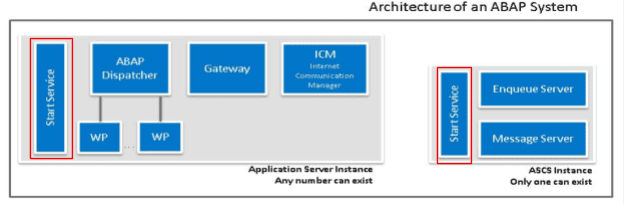
Usages of the SAP MC
The SAP MC can be used through Web User Interface or with the WebService:
- Web User Interface: accessing through any browser that supports Java applet (Internet Explorer or Firefox ESR) in:
http://<sap_host>:<5xx13>
https://<sap_host>:<5xx14>
Where <xx> must be replaced for the instance number of your SAP system - Calling the SAP MC webmethods through SOAP Protocol.
Accessing to the SAP Management Console
Web User Interface
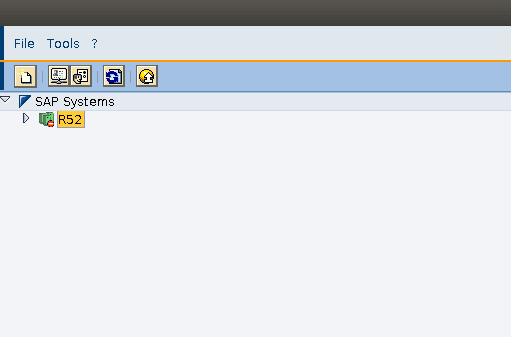
By accessing the Web User Interface through the previous mentioned links, this is the expected view:
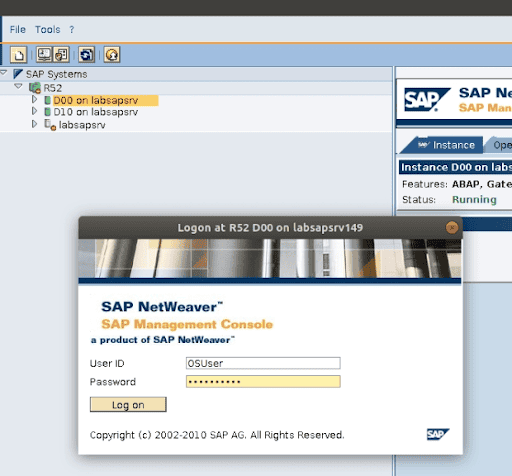
By selecting the corresponding system ID (SID), and then the instance, a login window will prompt (remember that the username and password of the SAP MC are the same as the OS):
After logging in, all the previous detailed actions will be available to execute. In addition, specific ‘methods’ can also be executed in the SAP MC panel:
- Start, Stop or Restart the instance
- Display of logs and trace files
- Values of profile parameters, etc.
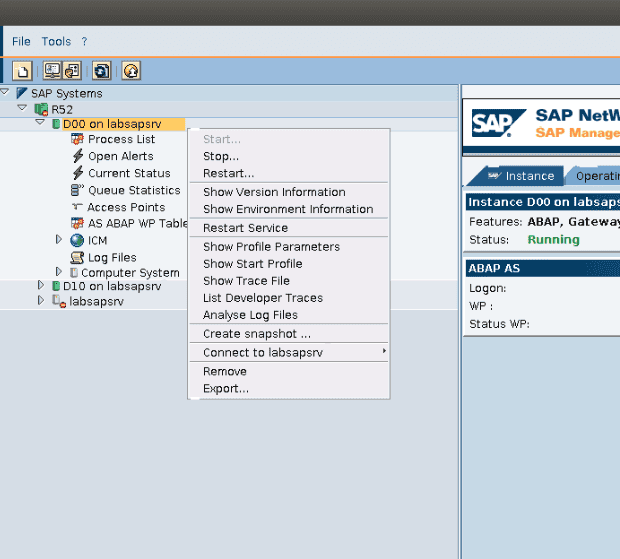
Also, more systems can be added in the same console, facilitating the administration of these from the same place.
WebService (SOAP protocol)
The SAP MC has a WebService with several webmethods that allows you to perform administrative tasks. These webmethods can be consumed through SOAP Protocol. There are many different SOAP tools available, you can consume the WebService of the SAP MC with any of those.
- The WSDL interface definition can be obtained directly from the web service in:
- http://<sap_host>:<5xx13>/?wsdl (NOT RECOMMENDED)
- https://<sap_host>:<<5xx14>/?wsdl (RECOMMENDED)
A set of webmethods in the SAP MC, such as Start, Stop or GetInstanceProperties, will be available to execute.
SAP MC Security Considerations
Web User Interface
An important security issue that should be always considered, is that SSL should always be enabled in the system and access the Management Console through HTTPS.
Accessing the SAP MC through HTTP(S), could lead into a potential Man In The Middle attack, stealing the credentials that you are using to interact with the SAP MC. It’s important to take into consideration that the credentials used to authenticate against the SAP MC are the system OS credentials, and the impact that it could have if stolen.
To securely manage access to this service, the following parameters need to be configured:
- service/http/acl_file
- service/https/acl_file
These parameters should be configured with the location of the ACL file. This file must contain the connection rules permitting and denying the access.
Localhost must always be added. If not, ‘sapcontrol’ command will fail. Below are some recommendations to keep in mind:
- Before configuring this parameter, perform all the necessary tests to avoid possible connection problems in a productive system with the monitoring systems.
- Set this parameter in the default profile, to protect all instances in the system.
- Be careful when allowing large ranges of IPs, as permission may be given to unwanted hosts.
WebService | SOAP: Protecting the Webmethods
All the webmethods of the SAP MC should be protected. If they aren’t protected, an attacker could perform administrative tasks, without any kind of authentication, being able to Start, Stop and even modify parameter values of your system, and fully compromise it.
The protection of the webmethods can be configured with the parameter ‘service/protectedwebmethods’. This parameter can be configured either with a separated list of webmethods (like ‘Start Stop etc’) or one of the four default sets [ ALL | SDEFAULT | DEFAULT | NONE ].
Also, it can be configured with a concatenation of possible values, mixing default sets with custom methods, for example:
- service/protectedwebmethods = SDEFAULT +Start +Stop -GetInstanceProperties (where the plus and minus signs means to add or remove a specific method of the default set used)
Additional examples
- service/protectedwebmethods = SDEFAULT +Start +Stop -GetInstanceProperties
- All methods defined in SDEFAULT, adding Start and Stop, and removing GetInstanceProperties.
- It’s always recommended to protect almost all, using SDEFAULT (service/protectedwebmethods=SDEFAULT).
- In releases >= 738 access to almost all methods of the Web service is protected by default (service/protectedwebmethods=SDEFAULT).
- In early releases only access to critical methods altering the instance state was protected by default (service/protectedwebmethods=DEFAULT).
At Onapsis, we are committed to providing our customers with the best recommendations and solutions for the security of their SAP systems. The Onapsis Platform has several modules to check all these critical configurations. Adequate protection of your SAP’s Management Console is important to protect the integrity of your system.
Frequently Asked Questions (FAQ)
What is the port for SAP Management Console?
The default ports for SAP Management Console (SAP MC) are 5xx13 for HTTP and 5xx14 for HTTPS, where “xx” represents the unique Instance Number of the SAP system. For example, if your Instance Number is 00, the secure HTTPS port is 50014.
How do I access the SAP Management Console?
You can access the SAP MC via a standard web browser using the URL format https://<hostname>:5xx14. Alternatively, administrators can use the operating system command-line tool sapcontrol or third-party SOAP clients to interact directly with the SAP Start Service interface.
Is the SAP Management Console vulnerable?
Yes, default configurations of the SAP Management Console can be vulnerable. Common risks include unauthenticated access to critical webmethods (allowing attackers to restart systems or view logs) and the exposure of administrative credentials via unencrypted HTTP connections.
How do I secure the SAP Management Console?
To secure the SAP MC, you must implement three key controls:
- Enforce SSL to prevent credential theft.
- Configure ACLs (
service/http/acl_file) to restrict access to trusted IP addresses only. - Protect Webmethods by setting the parameter
service/protectedwebmethods = SDEFAULTto ensure all critical administrative tasks require authentication.
